
First receipt in five minutes
Sign up, add an item, receive, ship, and check stock — five steps
Nothing to install and no long training
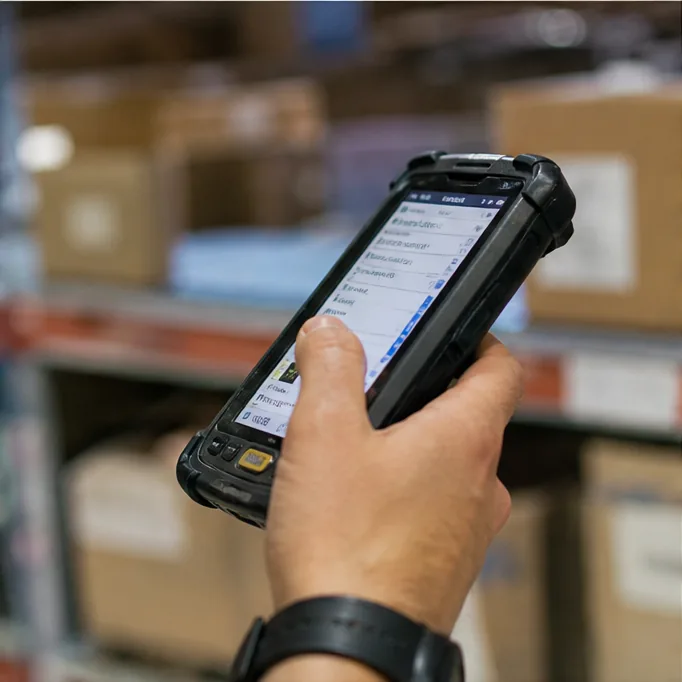
Enter it on your phone, right there at the rack
The five steps below are all there is
-
Sign up about 1 minute
- Open it in your phone browser — no app to install
- Sign up with Kakao · Google · LINE or email
- You can rename the team later
To use it with staffInvite them from Settings — the invited address must match the one they sign up with -
Add an item about 1 minute
- Name the item and pick a base unit — kg for weight, ea for count, L for liquid
- Trading in boxes? Register "1 box = how many kg"
- Then receive by the box and ship by the unit — stock still adds up
- A 5kg box and a 10kg box can sit on the same item
Fine to add laterShelf life · low-stock alerts — no need to fill these in now -
Record a receipt about 30 seconds
- Tap Inbound, enter the item and how much arrived
- Received in boxes? 50 × 10kg box — 500kg shows alongside
- The date defaults to today — change only the date for another day
- The purchase price can go in later
-
Record a shipment about 30 seconds
- Tap Outbound, enter the item and how much is leaving
- Deducted from the oldest stock first — pick a specific lot with "Choose manually"
- The destination autocompletes from next time
-
Check stock
- See what's left on the home screen — tap an item for history by date
- If it doesn't match the shelf, enter the real count in Stocktake — nothing is overwritten, the difference is kept as history
Export to a spreadsheetPick a period and download the movements as XLSX · CSV — ready for tax and settlement
Basic Mode and Detailed Mode
Start in Basic
Turn on Detail in Settings when you need more
Your records stay — only what's on screen grows
| Feature | Basic Mode | Detailed Mode |
|---|---|---|
| Items, receipts, shipments | Included | The purchase price can go in later |
| Box ↔ kg conversion | Included | Included |
| Automatic oldest-first allocation | Automatic only | Automatic + manual selection |
| Quantity and price by grade | Not included | Included (Premium, A/B/C, etc.) |
| Sorting stages and loss records | Not included | Included |
| Origin records | Not included | Included |
| Processing (material → product) | Included | Included (grades and specific receipt selection) |
| Information density | Less, with larger text | More detail at a glance |
Selling by grade or tracking sorting losses? Detail
You can switch at any time
What people ask most
Do I need to install an app?
No — it runs in your phone browser
Add it to your home screen and it opens like an app
Can I use decimal quantities?
Yes — 1.5kg, 0.25 boxes, to two decimal places
On inbound, outbound and adjustments alike
What if box weights are not always the same?
"1 box = how many kg" is a reference value
On a day the real weight differs, enter kg directly and record the gap at stocktake
Can my team use it together?
Yes — invite them and you share the same stock
The invited address must match the one they sign up with
Can I upload items from Excel?
Bulk upload isn't available yet — add items one at a time
Downloading to a spreadsheet already works
Can I use it offline?
An internet connection is required — offline isn't supported yet
Faster to try than to read
One item, one inbound
Five minutes tells you whether it fits your floor